A Smarter Way to Track Order-Related Costs in Reserva
In many produce businesses, expenses connected to Sales Orders and Purchase Orders are easy to create but harder to follow. A cost may start from an operation, appear later on a vendor bill and then need to be reviewed by accounting before anyone can confirm whether it was planned, billed, allocated or still pending.
When those details are spread across different documents, teams lose time moving between sales records, purchase records, bills and allocation references. The Expense Lines List View in Reserva was created to solve that problem.
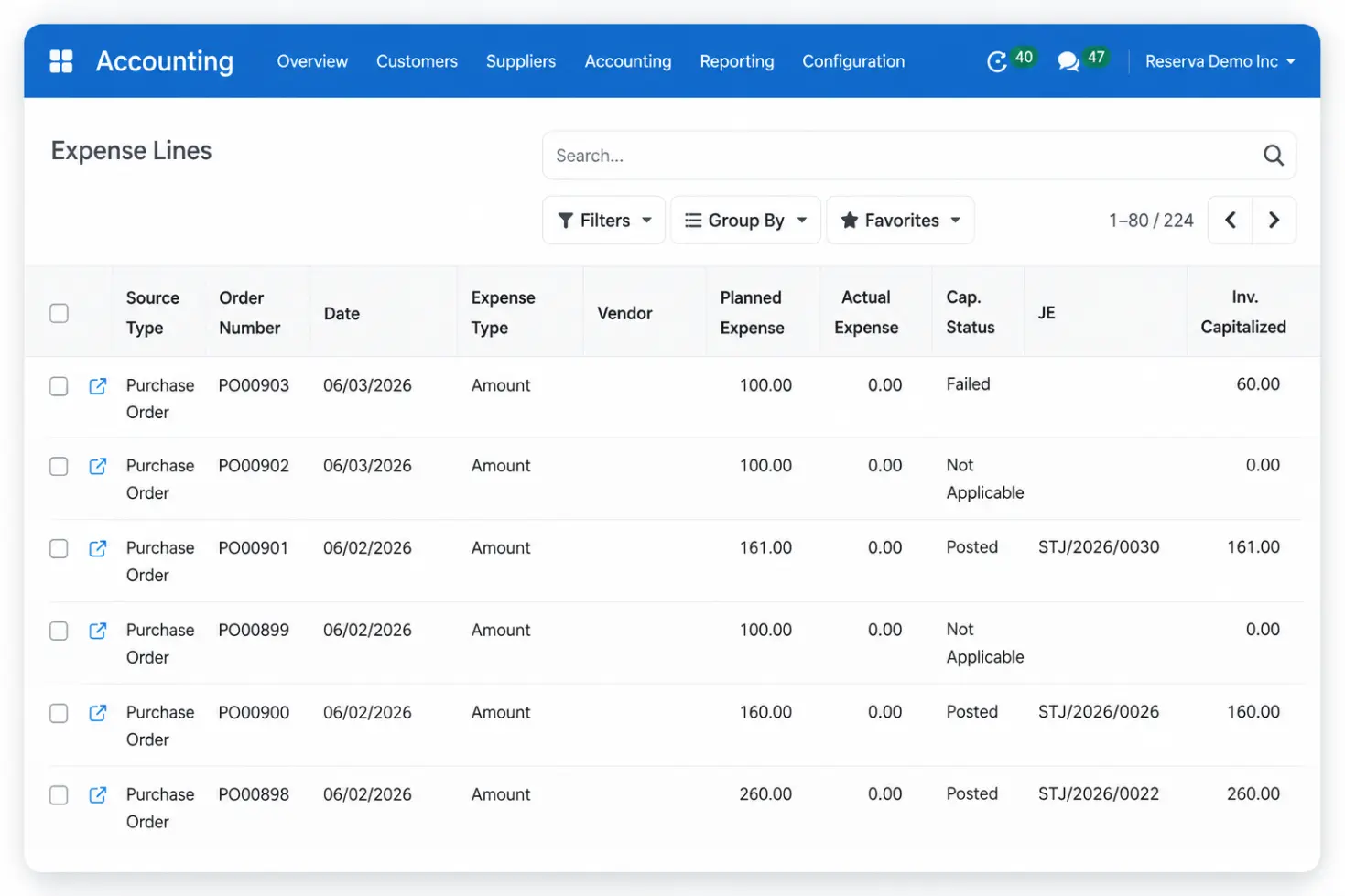
It brings Sales Order and Purchase Order expenses into one unified accounting view, giving teams a clearer way to review planned costs, actual costs, vendor bills, allocation status and related documents from a single place.
Expense visibility should not depend on knowing exactly where every cost was created.
One View for Every Order-Related Expense
The Expense Lines List View is a centralized report inside Reserva that shows expense lines generated from both Sales Orders and Purchase Orders.
Instead of treating sales expenses and purchase expenses as separate paths, Reserva brings them together into one accounting-friendly list. Each line gives users the context they need to understand where the expense came from, which order it belongs to, which vendor is involved, whether a bill is linked and whether the expense has already been allocated.
The view is read-only, so accounting and operations teams can review the information confidently without changing the original transaction records by accident. It works as a control point: a place to observe, verify, filter and trace expenses before taking the next step.
Built for Finance Teams That Need Clarity, Not More Screens
The view is available directly from the Accounting area in Reserva, where finance teams already manage their daily work. From there, users can review key information such as the source document, expense date, expense type, product, vendor, planned expense, total planned expense, vendor bill, actual expense, allocation date and allocation status.
The real value on using this view, is not only that the data is fully visible, but finding out that the data you are viewing is also fully connected. A given user can start from a single expense line and open the related Sales Order or Purchase Order when they need more context. From the detail view, they can also access connected records such as the vendor bill, linked PO or SO, allocation link, invoice line or source expense when those records exist.
The Expense Lines List View also includes filters and grouping options that help users focus on the exact records they need to review.
- Allocation Status
Review allocated or unallocated expenses to see what has already been processed and what still needs attention.
- Source Type
Separate Sales Order expenses from Purchase Order expenses when the team wants to focus on one side of the workflow.
- Order and Date
Search by order number or review expenses by period to support daily checks and month-end review.
- Expense Context
Filter by expense type, product, vendor or vendor bill to investigate a specific cost, supplier, or billing reference.
- Grouped Views
Group records by order, vendor, expense type, status, date or source type to move from individual expense checks to a broader cost review.
A Review Flow Produce Teams Can Trust
Because of every expense recorded in Reserva remains connected to the operational documents that created it, instead of reviewing isolated accounting entries, your team can easily trace each cost back to the linked document. This makes audits faster, reduces reconciliation time and gives finance and operations a shared view of every expense.
Reviewing an expense follows a simple three-step workflow: from identifying the transaction to validating its status and opening the supporting documents behind every cost.
Identify the Cost
Start with the expense line and review the order, product, vendor, planned amount and source type.
Check the Status
Confirm whether the expense is allocated, linked to a vendor bill and matched with actual cost information.
Open the Context
Use related document links to review the source SO/PO, bill, allocation link, invoice line or source expense.
Practical Use Cases Across Accounting and Operations
Because the list shown on the view connects expense lines with their source orders, vendor bills, allocation status and related documents, it becomes useful in several everyday workflows for produce companies.
Review Pending Allocations
Before month-end close, accounting can filter for unallocated expenses and quickly see which costs still need review or follow-up.
Compare Planned and Actual Costs
Managers can review planned expense, total planned expense, actual expense and allocation date in the same list.
Trace Vendor Bills Back to Orders
When a bill needs context, users can start from the expense line and open the related source document or detail view.
Review Expenses by Vendor
Finance teams can filter or group by vendor to understand which expenses are connected to a specific supplier.
Investigate Cost Questions Faster
When something does not look right, the detail view helps teams move from the expense line to related documents.
Support Period-End Reviews
Teams can review recent allocations, missing bills and open expense questions before finalizing reports.
From Scattered Expense Data to Confident Cost Control
The main benefit of the Expense Lines List View is, definitely, having more control. It gives teams a clearer picture of the costs connected to sales and purchasing activity, without forcing them to chase information across multiple screens.
For accounting teams, this means faster reviews, better visibility into pending allocations and easier access to the documents behind each expense. For operations teams, it creates a shared reference point where expenses can be understood in relation to the orders that generated them; for managers, it supports better cost monitoring because planned and actual expenses are easier to compare.
Expense management is not only about recording costs: it is about knowing where those costs came from, whether they were expected, whether they were billed and whether they were properly allocated.
Reserva’s Expense Lines List View helps answer those questions in a practical way. It reduces manual searching, improves transparency between departments and gives teams a more reliable foundation for daily accounting checks, vendor reviews and period-end controls.
How much easier would expense reviews be if every cost came with its full order context?
Book a call with Reserva ERP and see how the Expense Lines List View can help your team review planned expenses, actual costs, allocations and related documents from one connected workflow.
Book a Call with Reserva